

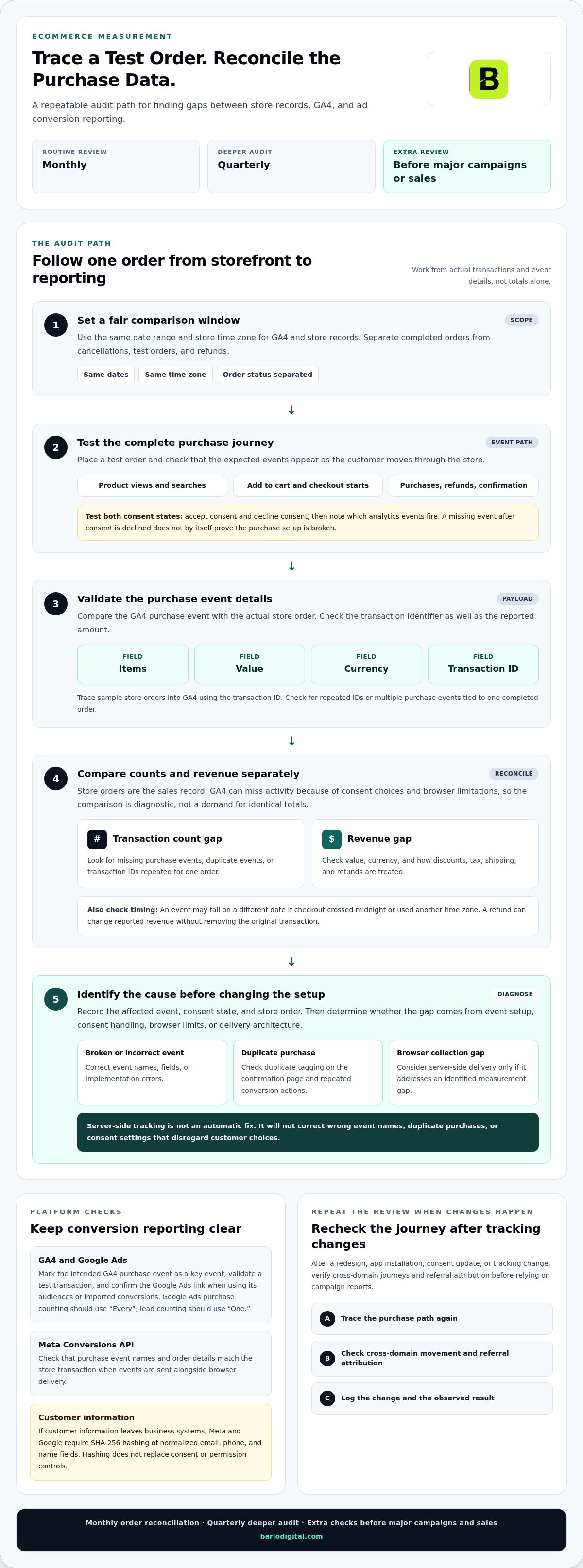
Tracking errors don’t wait for a convenient review. Check ecommerce tracking monthly, run a deeper audit quarterly, and audit again before major sales events or campaigns. Use the ecommerce tracking audit checklist for 2026 to make those reviews repeatable, not reactive.
It’s reasonable to expect purchase data to match store orders, but consent choices, browser limitations, and broken event setups can create gaps. This checklist shows how to compare GA4 purchases with order records, when server-side tracking may help, and what to recheck after a redesign, app installation, consent update, or tracking change. Five focused work sessions turn a vague audit into evidence you can use to find and prioritize measurement failures.
Key Takeaways
- Set a steady audit rhythm: review tracking monthly, run a deeper check quarterly, and audit before major campaigns or sales events.
- Server-side tracking is not an automatic fix. First identify whether consent, browser limits, or implementation errors are causing measurement gaps.
- Compare GA4 purchase counts with store orders every month, then investigate unusual differences against the store’s transaction records.
- Test the full purchase journey, including product views, cart actions, checkout, refunds, and confirmation pages, across relevant devices and customer scenarios.
- After a redesign, app installation, consent update, or tracking change, recheck cross-domain journeys and referral attribution before relying on campaign reports.
Do I need server-side tracking to use this checklist?
No. Server-side tracking is an implementation choice, not a prerequisite for auditing ecommerce analytics. First verify the browser-based events and consent behavior already in place. If a purchase is missing from GA4, identify whether the cause is a broken event, a consent choice, or a browser limitation before changing the tracking architecture.
Start with a test order and follow it from product pages to the confirmation page. Check that product views, searches, add-to-cart actions, checkout starts, purchases, and refunds are recorded as expected. A purchase event should include items, value, currency, and transaction_id. Compare these fields with the actual order record, not just the event count.
Consent affects what you can observe at each step. Test the storefront with consent accepted and declined, then note which analytics events fire in each case. A missing event after consent is declined does not by itself mean the purchase setup is broken. If a purchase event fires twice for one order, investigate a different issue, such as duplicate tagging on the confirmation page.
Server-side tracking may help when browser-based collection misses events you need to measure. It will not fix incorrect event names, duplicate purchases, or consent settings that disregard customer choices. Document the specific gap first, then determine whether the current setup can be corrected or server-side delivery addresses the cause.
Validate GA4 conversion measurement by marking the intended purchase event as a key event and completing a test transaction. Confirm its value, currency, and transaction identifier in the event data. Then check that Google Ads is linked to the GA4 property when using its audiences or imported conversions. Google Ads purchase counting should use “Every,” while lead counting should use “One.”
For Meta, inspect whether the Conversions API sends the purchase event alongside browser-based delivery. Check that event names and order details match the store transaction. If customer information leaves business systems, Meta and Google require SHA-256 hashing of normalized email, phone, and name fields. Hashing does not replace consent or permission controls.
- Verify the event path: Test one order from product view to confirmation, including a refund where applicable.
- Check conversion settings: Confirm GA4’s purchase key event and the Google Ads link used for imports or audiences.
- Record the gap: Note the event, consent state, and order record before changing delivery methods.
A documented ecommerce tracking audit can help isolate whether the failure sits in event setup, consent handling, or delivery architecture. Server-side tracking is useful only when it solves an identified measurement problem.
Comparing GA4 purchases with store orders
Compare Google Analytics 4 purchase counts with store orders every month. Store records show what was sold; GA4 can miss activity because of consent choices and browser limitations. The comparison is a diagnostic, not a demand that both systems report identical totals.
Use the same dates and store time zone when comparing totals. Separate completed orders from cancellations, test orders, and refunds. A refund may change reported revenue without removing the original transaction. Document how the store records these changes so a difference in reporting is not mistaken for a tracking failure.
Compare transaction counts and revenue separately. A count gap points toward missing or duplicate purchase events. A revenue gap can indicate incorrect values, currency handling, or different treatment of discounts, tax, shipping, and refunds. Pick sample orders from the store and trace each one into GA4 by its transaction ID.
- Check missing orders: Select store orders absent from GA4 and inspect consent status, browser path, and confirmation-page behavior.
- Check duplicates: Find repeated transaction IDs or multiple purchase events for one completed order.
- Check revenue: Compare the order total with the GA4 value and note whether discounts, tax, and shipping match.
- Check timing: Look for events recorded on a different date because the checkout crossed midnight or used another timezone.
Google Ads needs its own deduplication check. Review the purchase conversion actions used by campaigns. If the same sale arrives through an imported GA4 conversion and a separate Google Ads tag, inspect whether both actions are included in reporting or bidding. Keep the intended purchase action clear, and use the transaction ID consistently wherever the setup supports it. Otherwise, one order can appear as multiple conversions and distort campaign optimization.
Post-purchase surveys offer another signal, but they do not replace order records or analytics. Ask buyers how they found the store, then compare their answers with campaign traffic and attribution reports. A buyer might remember a social ad before returning later through search. Keep survey answers separate, and look for recurring patterns across reporting periods rather than treating every response as definitive attribution.
Keep a monthly log with the date range, store order count, GA4 purchase count, revenue totals, and investigated causes. Note whether the gap came from consent, event delivery, refunds, or duplicate conversion actions. That record shows whether a tracking change fixed the measured problem or merely shifted the discrepancy.
If the gap remains unexplained, a focused GA4 and ecommerce tracking review can trace order records against analytics and ad conversion signals.
Audit frequency and troubleshooting
Review ecommerce tracking monthly, run a mini-audit every quarter, and complete a full audit yearly. Also audit before major campaigns, sales events, launches, replatforming, or major version upgrades. Use GA4, your store platform’s order records, Google Ads diagnostics, and a change log. Audit costs depend on platform count, integrations, store complexity, and scope; a quote follows a request.
A monthly review can catch problems before they distort marketing decisions. Check analytics tracking, website speed, checkout and payment flows, and security updates. Review platform support and payment security, and revisit them after a security bulletin. For example, a checkout update might leave mobile purchases working while desktop orders fail, or the other way around.
Each quarter, review more than purchase counts. Include analytics data, technical SEO, mobile usability, accessibility, and third-party integrations. Record each issue, its evidence, and its business impact. A filter in a reporting view might hide internal or test traffic, so confirm that relevant customer sessions remain visible after changing a filter.
Run an additional tracking check after a redesign, new app installation, consent update, or tracking change. These changes can interrupt data collection without changing the storefront’s visible behavior. Compare key metrics before editing the setup, then compare them again in 28 days. That gives the team a documented baseline and a later point for assessing the change.
- Check event delivery: Confirm product views, checkout starts, and purchases still appear after a platform release, because a new theme can alter event triggers.
- Check the checkout path: Complete a test order on mobile and desktop, because payment or confirmation steps can fail differently by device.
- Check reporting filters: Review GA4 filters and reporting settings, because excluded traffic can create an apparent drop.
- Check integrations: Inspect connected apps and tag changes, because one integration can duplicate or suppress events.
- Check campaign readiness: Test tracking before a major promotion, because broken campaign links or checkout events can weaken attribution.
When figures change, isolate the cause before adjusting multiple settings. Compare the affected date range with the previous period, then review releases, consent changes, and campaign links. Record what you found, what you changed, and the result. If the issue remains, narrow the investigation to one device, event, or integration at a time.
A consistent ecommerce tracking audit checklist 2026 turns these reviews into a repeatable operating rhythm. The platform can change; the evidence trail should not.
What are common ecommerce tracking errors and how can you detect them?
Tracking problems often show up as a missing event, duplicate purchase, or revenue mismatch. Test the customer journey in order, from product view to completed order, and compare each event with the storefront action. Clicking “Add to cart” should not register as a purchase, and reloading the confirmation page should not create another transaction.
Use GA4 DebugView or your tag manager’s preview mode while completing a test order. Inspect the event name, trigger, and payload at each step. Then compare the test transaction with the store’s order record. This exposes errors that normal campaign reports can hide, including events firing on the wrong page or more than once.
- Missing product or cart events: View a product page, search the catalog, and add an item to the cart, then confirm each corresponding event appears in GA4.
- Purchase event missing required details: Inspect the GA4 purchase payload for
items,value,currency, andtransaction_id, because incomplete fields weaken revenue and transaction reporting. - Duplicate purchase events: Complete one test order, reload its confirmation page, and check whether GA4 records another purchase for the same transaction ID.
- Incorrect event order: Compare the sequence of view, add-to-cart, checkout-start, and purchase events against the actual storefront journey.
- Wrong item data: Compare product IDs and item values in GA4 with the selected products and prices in the store order.
- Refunds absent from reporting: Process or inspect a test refund, then confirm the analytics setup records the refund against the correct transaction.
Consent can affect what an audit captures. Repeat a test order with different consent choices, and record which events appear in each case. A missing event under one consent state needs a different diagnosis from a duplicate event after confirmation. Keep these results separate rather than combining them into one error count.
Test checkout scenarios that may change event behavior, including a discount code, a different shipping method, and address validation. Check the confirmation page after each completed transaction. If one route fails, compare its page sequence and event payload with a successful route. This can reveal whether the issue is tied to a checkout option, device, or integration.
Log each finding with its affected event, test scenario, and order record. After a correction, repeat the same test rather than relying on a change in aggregate GA4 reports. A repeatable test shows whether the specific error is fixed and whether another checkout path remains broken.
How do you check cross-domain tracking, referral exclusions, and checkout attribution?
A checkout that moves shoppers between domains can split one visit into separate sessions. Test the complete path from storefront to payment provider and back. In GA4, confirm the same session continues across each domain. If attribution changes at checkout, reports may credit the payment referral instead of the original campaign.
Start with a tagged campaign link, then complete a test purchase. Record the landing page, storefront domain, checkout domain, and confirmation page. In the browser address bar, check whether GA4’s cross-domain linker parameter, _gl, passes between configured domains. Its absence can signal that cross-domain measurement is not connecting the journey.
- List the domains: Write down the storefront, checkout, and payment domains involved in one real purchase path.
- Review GA4 configuration: Check the web stream’s cross-domain settings and confirm each relevant domain is included.
- Run a tagged test: Open a campaign URL, complete checkout, and check whether the session source remains consistent.
- Inspect the return path: Confirm the payment provider returns shoppers to the expected confirmation page.
Referral exclusions solve a different problem. They prevent a listed domain, such as a payment processor, from appearing as a referral source in GA4. They don’t connect separate sessions or restore the campaign source by themselves. Add only domains that belong in this treatment, then repeat the tagged test. Excluding a broad or incorrect domain can conceal useful referral data.
For checkout attribution, compare the campaign source before checkout with the source recorded after payment. Check GA4 acquisition reports and the purchase event’s session context. If a shopper begins on a paid campaign, leaves for an external checkout, then returns, note where the source changes. This identifies whether the break occurs at outbound checkout or on the return visit.
Also inspect redirects and campaign parameters. A redirect can drop UTM values before GA4 records the landing session. Test the original ad link and each redirect destination. Confirm the final URL retains the intended campaign information, then compare the session source with the campaign settings. Keep a record of each domain and redirect tested.
If attribution breaks at a domain boundary, prioritize the handoff before adjusting campaign reports. A cross-domain tracking review can identify whether the configuration, referral handling, or checkout return path is breaking the measurement chain.
Barlo Digital: Ecommerce ad management (Meta, Google, TikTok)
Barlo Digital helps when tracking problems leave campaign decisions dependent on unreliable purchase data. Our ecommerce tracking and measurement audit examines your measurement setup, and our ecommerce ad management covers Meta, Google, and TikTok campaigns. An audit is useful when order records and ad platforms disagree, or tracking changes make campaign performance hard to assess.
When measurement gaps are the immediate problem, our ecommerce tracking and measurement audit focuses on the data behind those decisions. Once that foundation is clear, campaign management can use the available measurement to guide platform optimization.
Make measurement part of the operating plan
Reliable measurement takes more than a one-time cleanup. Make it part of how your team approves platform changes, launches campaigns, and evaluates results. Assign an owner to document changes and keep test evidence with the relevant release. This record can speed up future investigations and help prevent old tracking defects from returning.
Use the ecommerce tracking audit checklist for 2026 as a working control, not a file that gets opened once and forgotten. When measurement gaps affect campaign decisions, Barlo Digital can assess ecommerce tracking and measurement or manage Meta, Google, and TikTok advertising using the available data. Identify the decision your current reports cannot support, then address that measurement gap directly.
Explore Barlo Digital’s ecommerce tracking and measurement audit to discuss the tracking issue affecting your next decision. Clearer evidence gives your team a firmer basis for moving forward.
Frequently Asked Questions
How Often Should You Audit an Ecommerce Website?
Set the audit schedule according to how often your store changes, not just a calendar reminder. A stable storefront can follow a planned review, while frequent releases call for checks tied to deployment approvals. Assign an owner to maintain the schedule and record exceptions, such as a checkout update that needs immediate testing. This makes audit timing responsive to risk rather than a routine that overlooks changes.
Do I need expensive tools to do an audit?
No. Begin with GA4, your ecommerce platform’s order records, and the preview or debugging tools already available in your tag manager. These can expose missing events, repeated triggers, and incorrect order values. Add paid testing or monitoring tools only when a specific need remains, such as frequent releases or complex integrations. The priority is a repeatable test process, not a larger software stack.
How do I measure the revenue impact of fixing audit issues?
Establish a baseline before changing tracking, then compare the relevant reports after the fix. Separate a measurement correction from a real change in sales: recording a previously missed purchase improves reported revenue but does not create a new order. Use store records as the sales reference, and document which campaign or decision relied on the corrected data. This shows the value of better decisions without counting sales twice.
What if a platform I use is not listed?
Apply the same checks to the platform’s event and order data. Identify its equivalents for product view, cart, checkout, purchase, and refund, then map those actions to the analytics events used in your reports. A platform might label checkout completion differently, but the audit can still verify that one completed order produces one accurate purchase record.
What should an ecommerce tracking audit checklist include in 2026?
Check event coverage, purchase values, transaction identifiers, consent behavior, ad-platform connections, checkout journeys, and cross-domain paths. Record recent theme, app, and consent changes too. For a useful working document, give every check an owner, test evidence, result, and next action. This turns findings into assigned work instead of leaving defects buried in analytics notes.
How do you audit GA4 ecommerce events and purchase tracking?
Start by confirming that GA4 reports the intended purchase event as a key event, then inspect its event count in the relevant reports. Compare the same date range and reporting time zone across GA4 and your store platform before investigating differences. In DebugView, trace a controlled test session to see whether the expected event sequence appears. This separates configuration and reporting issues from store-order differences.
How do you verify ecommerce conversion tracking across web and mobile?
Test real checkout journeys on iOS Safari, Android Chrome, and desktop, using each relevant payment method and customer type. For every test, record the device, browser, consent choice, and payment route. Compare successful and failed transactions, then check whether the conversion event appears in the expected reporting destination. A responsive page alone does not prove that mobile payment and analytics paths work.
How do you test Google Tag Manager tags, triggers, and data layer ecommerce events?
Open GTM Preview mode, connect it to the storefront, and complete a test journey. Inspect the data layer event, variables, trigger conditions, and tags fired at each step. Confirm that purchase tags fire only after a completed order, not after a button click or page refresh. After publishing a correction, repeat the journey on the live site and confirm that the production container behaves as expected.

Article by
Carlos Benavides
Carlos Benavides founded Barlo Digital and is its Director of Paid Media and Performance. He has fifteen years in direct-response marketing, more than $50M in lifetime ad spend, and a B.S. in Computer Science, which is why tracking at Barlo Digital is built by hand. Barlo Digital is a director-led paid media and search agency serving US ecommerce brands, home-service companies and practices.


