

Creating a Google Business Profile is free. The cost isn’t the listing itself, but the work of setting it up accurately and keeping its information useful. If you’re deciding whether a Google business page is worth creating, start with this rule: eligible businesses can create or claim a profile, then verify it to appear on Google Search and Maps.
A profile can influence whether local customers find your business, understand what you offer, and know where you serve. Visibility depends on accurate details, not simply having a listing. An incorrect address, category, or service area can confuse potential customers and send the wrong signals.
This guide explains what’s free, how to create or claim a profile, and what verification involves. It also covers how visibility on Google Search and Maps works, how to set service areas, and how to keep your business address private when customers don’t visit your location.
Key Takeaways
- Creating or claiming a Business Profile is free; focus on accurate setup and upkeep rather than paying for the listing itself.
- Use your real-world business name, choose the correct category, and complete the verification steps shown during setup.
- Visibility in Search and Maps depends on having a claimed and verified profile with clear, accurate business information.
- Set service areas to reflect where you actually serve, and hide your address if customers don’t visit your business location.
- Separate the free Google listing from any optional help with setup, local SEO, advertising, or measurement.
Is a Business Profile on Google free?
Yes. Creating a Business Profile and listing a business on Google is free. Google doesn’t charge to set up the listing. The work lies in entering accurate information and maintaining it, so customers see current details rather than outdated hours or contact information.
Start with the practical details customers need before they call or visit. Add your regular business hours, then update them when your schedule changes. If your business closes for a holiday or changes its hours temporarily, reflect that change on the profile. Google’s sample profile for Shelly’s Coffee lists the business as open 24 hours. That is an example, not a recommendation for other businesses.
Keep contact information usable. A profile must include a phone number as customer contact information, and it can list up to 2 additional phone numbers besides the primary number. Use numbers that reach the right team. For example, a service business might use its main line for new inquiries and an additional number for a separate location. Remove details that send customers to an inactive line.
Photos and updates help customers understand what to expect before reaching out. Use clear, current images of your storefront, team, products, or completed work. A restaurant might show its entrance and dishes; a contractor could feature finished projects. Use profile updates to share relevant changes, such as seasonal services or current announcements. Keep everything accurate and consistent with the business customers encounter in person.
A Google Business Profile description can be up to 750 words. Use that space to describe what the business does in plain language, not to repeat a list of keywords. The profile can also include one social media link per supported platform. Choose the account customers will find useful, and keep it active enough to represent the business accurately.
How do I manage Google reviews and respond to them? Read and respond to customer reviews through the profile. Keep replies specific, professional, and relevant to the experience described, without revealing private customer details.
Google reviews changes to a Business Profile before publishing them. Treat profile edits as updates that may need review, rather than assuming they’ll appear immediately. After changing hours, phone numbers, photos, or other details, check the published listing. Even a free listing needs active oversight: inaccurate information can misdirect customers before they make the first call.
Address setup should reflect how customers meet the business. Businesses that do not meet customers at their business address can choose not to show that address on their Google Business Profile. Google Business Profile guidance says to enter a business's physical address on Address Line 1 and any mailbox or suite number on Address Line 2.
Categories and booking options can also be configured. Google Business Profiles can include up to 9 additional business categories; choose categories that fit the business. Google Business Profiles can enable clients to book appointments online at any time of day (24/7). For a business that takes appointments, this gives clients an online booking option beyond phone contact. Revisit these settings as the business's service and customer arrangements change.
Creating or claiming a Business Profile
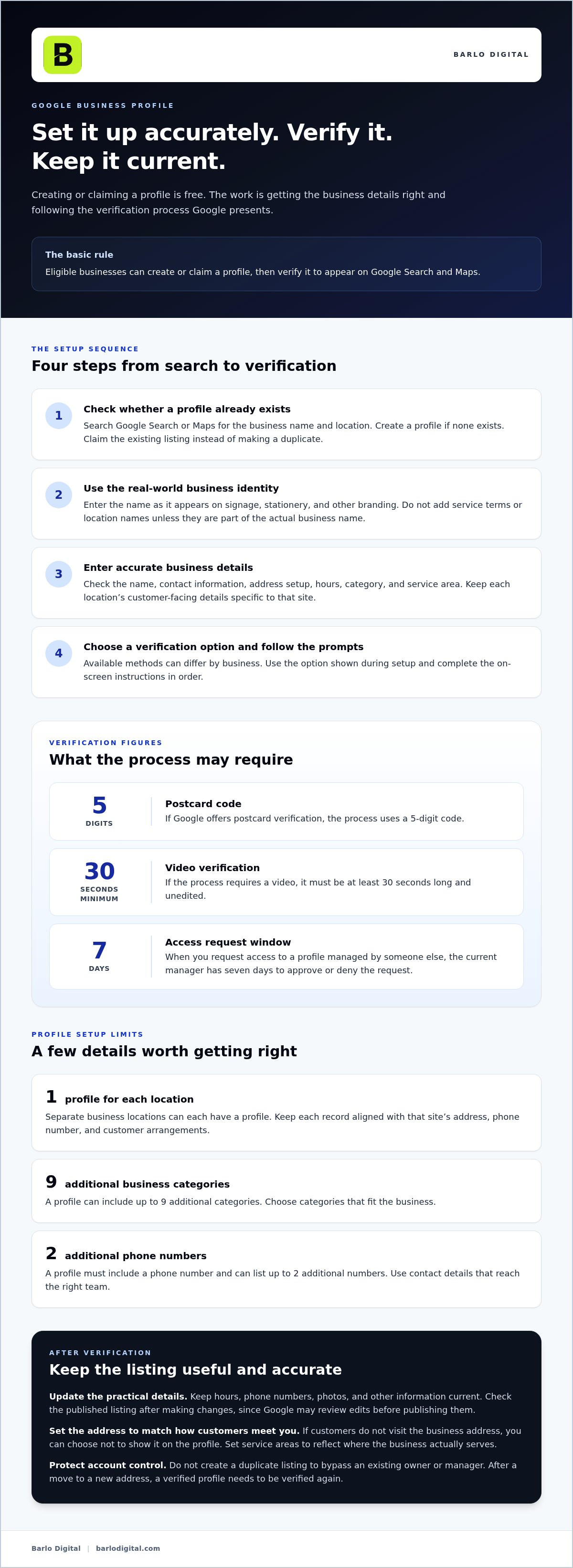
First, confirm that the business is eligible for a Business Profile. If it doesn’t already appear on Google Search or Maps, create a profile. If one exists, claim it instead of adding a duplicate. Duplicate listings can split customer information and complicate ownership.
Use the business’s real-world identity throughout setup. Enter its name exactly as it appears on signage, stationery, and other branding. Don’t add service terms or location names unless they’re part of the actual business name. Consistency helps customers recognize the listing and connect it with the business they know.
Follow the setup sequence carefully:
- Search Google Search or Maps for the business name and location to find an existing profile.
- If no profile exists, begin creating one. If the listing exists, use the claim process.
- Enter the business details accurately, including the name and contact information.
- Select one of the verification options shown, then follow the on-screen instructions.
Verification options can differ by business. Google presents the available method during setup, so follow that process rather than substituting another method. If Google offers a postcard, its verification process uses a 5-digit code. If the process requires a video, the recording must be at least 30 seconds long and unedited.
Keep account control tied to the business. If you request access to a profile managed by someone else, the current manager has seven days to approve or deny your request. Don’t create another listing to bypass an existing owner or manager. Once verified, the Google business page lets the business control how its information appears on Google.
For businesses with separate locations, service areas, and staff, Google’s profile guidance allows one profile for each location. Treat each as a separate customer-facing record, with details for that site. Don’t copy an address or phone number that could send customers to another branch.
After a move to a new address, a verified profile needs to be verified again. Keep the Google business page aligned with current operations, especially during relocations or ownership changes. Accurate details and accessible account control help prevent errors that affect customers.
During setup, include verification in the required sequence: the business owner must select a verification option and follow the on-screen instructions. Choose the option presented for that profile and complete the steps as shown, rather than skipping a step or trying a different route.
Keep the business name grounded in its real-world identity. Enter it on the Google Business Profile exactly as it appears on signage, stationery, and other branding. Check the name against those materials before submitting it, and don’t alter the wording for convenience. This keeps the profile aligned with the identity shown in the business’s own materials. Preserve the same naming standard when reviewing profile details later.
Google search and Maps visibility for businesses
A verified Business Profile is the starting point for appearing as a business on Google Search, Maps, and other Google services. It connects your business name, category, contact details, and location or service area. Claiming and verifying a profile may help a business appear on Google Search and Maps. Verification establishes control of the listing, but doesn’t guarantee a particular position in every search.
Google’s scale makes this visibility consequential. It held 91% of worldwide search engine market share in 2025, and approximately 80% of U.S. consumers looked up business locations on Google Maps in 2025. Those figures describe reach, not the likelihood that one specific business will rank first. A complete profile helps customers identify the right business when it appears.
Category selection helps the profile describe the business clearly. Google recommends choosing a category that describes what the business is, rather than adding categories for every product or service. For example, a dental practice should choose the category that identifies it as a dental practice, not a category for each treatment. The category should reflect the core business, while other profile details describe its services.
Search visibility is local in character. The guide describes Google Search as hyperlocal within a 100-mile service area. That does not mean every search within that distance produces the same result. A nearby customer looking for a specific service and a customer farther away may see different businesses. Keep the profile’s location and service information aligned with where the business actually operates.
Use this sequence to assess whether the listing is ready to be found:
- Confirm the profile is claimed and verified, since both are needed for visibility on Google Search and Maps.
- Check that the primary category describes the business itself, not every item it sells or service it performs.
- Review the location or service details so they match the real operating footprint.
- Search Google Maps and Google Search using the business name and a relevant service, then inspect what customers can see.
A future opening date follows a separate display rule. It can be entered up to one year ahead, but the date does not appear on Google until 90 days before opening. For a business preparing to launch, that distinction matters: entering the date early does not make it visible immediately.
Visibility depends on an accurate profile that’s verified for control. Treat the Google listing as one part of local discovery, then review it from a customer’s perspective. A mismatch in the name, category, or location can make the listing less useful, even when the profile exists.
Service areas and location privacy
A service-area business travels to customers instead of serving them at its listed address. A plumber, mobile pet groomer, or in-home contractor may fit this model. Google lets these businesses hide an address where customers aren’t served. Keep verification details separate from the location information customers see.
Set the public location to match how customers interact with the business. If customers visit a staffed storefront, show its address. If the business travels to homes and customers don’t visit its base, choose not to display that address. Don’t show a home or office as a customer-facing location if visits don’t happen there. A mismatch can send customers to the wrong place.
Service areas describe where the business serves customers. Google Business Profiles can include up to 20 cities, ZIP codes, or counties. Choose the places the team actually covers, such as the counties where an electrician regularly accepts jobs. Don’t use the list as a collection of distant markets the business hopes to reach someday.
The overall service area generally should not extend farther than about 2 hours of driving time from the business’s base. Travel time gives a practical boundary, while the actual places served determine which locations belong on the profile. A business based in one city might serve nearby towns but exclude a distant city that requires an impractical trip.
Keep geography separate from specialties. A service area answers “where”; a specialty describes “what.” For example, a roofing contractor might list the areas where crews take jobs, while its services explain roof repairs and replacements. Listing a service area doesn’t mean every specialty is available there. Make the profile reflect the actual locations served and work offered.
Use this review before saving service-area changes:
- Decide whether customers visit the business address or receive service at their own location.
- Hide the address if customers don’t meet the business there.
- List only cities, ZIP codes, or counties the business serves, staying within Google’s limit of 20 areas.
- Compare the farthest listed area with the roughly 2-hour driving-time boundary from the business base.
- Check that listed specialties match work actually offered across those locations.
Profiles for businesses with multiple locations need careful separation. Each location should reflect its own operations, rather than using one address to imply service everywhere. For example, a company with a customer-facing office and a separate mobile team should accurately describe the office and the team’s actual service area. A clear address choice protects privacy, while a carefully maintained service-area list keeps geographic claims accurate.
Cost of creating a Business Profile
Creating, claiming, and listing a business on Google is free. There’s no Google listing charge to budget for. The real cost question is whether you’ll manage setup and maintenance yourself or pay for that work.
For a business owner handling setup, the main investment is time. Tasks include checking for an existing listing, entering accurate information, completing Google’s verification steps, and reviewing what appears publicly. A single storefront with clear hours and one contact number takes less coordination than a business with multiple locations, teams, and sets of customer details.
Verification can also affect the effort involved. Google presents the available method during setup, so the business must follow that process. If the chosen method involves a postcard, enter the 5-digit code when it arrives. If Google requests a video, the recording must be at least 30 seconds and unedited. These are verification steps, not fees for creating a profile.
Paid support is separate from the free listing. A business may hire someone to organize profile information, coordinate verification, or manage updates. The workload depends on factors such as the number of locations, the state of existing listings, the accuracy of business details, and the maintenance required. Before approving support, define the tasks and review the provider’s published prices.
Separate necessary work from optional add-ons before approving a proposal. A useful scope identifies specific tasks, such as correcting inconsistent details, preparing location-specific information, or maintaining updates. It should also clarify who owns the profile and who retains access. Paying for the listing isn’t necessary; paying for help may make sense if internal time or coordination is the constraint.
- One location: Check the business name, address or service area, phone number, and hours, then complete the verification steps.
- Several locations: Organize accurate details for each site and confirm that each profile reflects its own operations.
- Existing listing issues: Identify duplicate, outdated, or inaccessible profiles before starting new work.
- Ongoing management: Decide who will handle changes to hours, contact information, and other customer-facing details.
The practical takeaway is simple: Google doesn’t charge to create a profile, but setup and optional support take time and may carry a cost. Pay for defined work, not because you assume a free listing requires a paid setup package. Local search support can address visibility beyond profile setup, while the profile itself remains free.
Barlo Digital: Ecommerce ad management (Meta, Google, TikTok)
Barlo Digital supports local visibility through Local SEO and AI search, as well as local advertising on Google Search, Local Services Ads, and Meta. A Business Profile is one part of local discovery. Paid campaigns are separate: they don’t replace accurate profile information or guarantee a particular search position.
A director runs every account, and senior-level staff handle the work. Nothing is handed to junior staff, and there’s no account-manager layer. Local search support is relevant when a business needs help with its broader search presence, while local ad management addresses paid traffic.
These services support different parts of customer acquisition. Choose a focus based on whether the gap is local discovery, paid traffic, or profile accuracy.
Make local visibility accountable
A Google business page isn’t a complete customer acquisition system. Decide what you want customers to do after finding you: call, request an estimate, book, or visit. That outcome gives your team a practical way to assess whether local visibility supports real business activity, rather than treating the listing’s presence as the finish line.
Barlo Digital provides Local SEO and AI search, while ecommerce ad management and an ecommerce tracking and measurement audit address different acquisition and measurement needs. The right focus depends on where your business needs more clarity: local discovery, paid traffic, or reliable performance data. Set a specific goal, then align the work with it.
Choose one measurable outcome to improve next, and let it guide your decision. Contact Barlo Digital to discuss local search support and the next step for your business.
Frequently Asked Questions
How do I verify my business on Google?
Complete the verification method Google displays for your Business Profile. Sign in, select the listing, and follow the on-screen instructions. Prepare access to the business details or equipment required by that method. If Google offers postcard verification, enter the 5-digit code you receive. If it requests a video, submit an unedited recording at least 30 seconds long. Verification confirms control of the listing; it doesn’t guarantee a specific position in search results.

Article by
Carlos Benavides
Carlos Benavides founded Barlo Digital and is its Director of Paid Media and Performance. He has fifteen years in direct-response marketing, more than $50M in lifetime ad spend, and a B.S. in Computer Science, which is why tracking at Barlo Digital is built by hand. Barlo Digital is a director-led paid media and search agency serving US ecommerce brands, home-service companies and practices.


