

A Google Business Profile is free to create on Google. Eligibility matters: only businesses that make face-to-face contact with customers can have one. The listing costs nothing, but setup, verification, and accurate details determine whether it’s ready to represent your business.
Free doesn’t mean automatic visibility. Missing or outdated information can leave customers unsure whether they’ve found the right business. Learn how to claim and verify your profile, what information to manage, and how to avoid common setup mistakes.
This guide walks you through the process, from checking eligibility and choosing accurate business details to keeping photos, services, and customer responses current. You’ll also learn how a profile supports local visibility and what to address when the listing is complete but local search performance still needs work.
Key Takeaways
- Creating a business listing on Google is free, but eligibility depends on making face-to-face contact with customers.
- Claim the correct listing, complete verification, and keep business details accurate so customers can identify and reach you.
- Use clear, relevant photos and current service information to help people understand what your business offers.
- Respond to customer reviews and questions with specific, professional replies that address the issue directly.
- Treat local visibility as ongoing work: a complete profile helps customers assess your business, but it is only one part of local search.
Managing customer reviews and questions
Set a regular review routine: check the listing, respond to customers, and track unanswered questions. A thoughtful reply can clarify a concern for the reviewer and for others comparing local businesses.
-
Respond to Customer Reviews
Open each new Google review and write a direct, specific response. Thank the reviewer, address the point they raised, and avoid sharing private details or arguing about disputed events. If someone praises a quick appointment, acknowledge the service without posting personal information. If a review raises a problem, state a practical next step for resolving it.
-
Report Fake or Inappropriate Reviews
Use Google’s reporting option for a review you believe is fake or inappropriate, and clearly explain your concern. Reporting doesn’t replace a public reply: respond calmly when a factual correction would help readers. For multiple locations, assign additional owners or managers to help manage profiles. Google also allows primary ownership to be transferred.
- For a business with multiple branches, check each location’s listing separately. Confirm the review belongs to the correct location before responding. A reply about the wrong branch creates confusion, especially when customers recognize a shared business name but visit different addresses.
- Review customer questions alongside Google reviews rather than leaving them in a separate queue. Answer with concrete details, such as the services offered or how to book, and make sure the information matches the listing. If a question comes up repeatedly, improve the relevant profile details so future visitors can find the answer without asking.
- Use posts and reviews for different purposes. Google Posts can share offers, general updates, or events hosted at your location; reviews record customer feedback. For example, publish an event update as a post, then reply to a review that mentions attending. A post isn’t a substitute for a direct response.
- Set a repeatable review check: open the listing, look for new reviews and questions, respond where useful, and report content that appears fake or inappropriate. Keep replies factual and consistent across locations. A complete Google Business Profile supports local SEO and AI search visibility, but customers still need accurate answers when they evaluate a business.
Make the review routine part of a broader customer-service check. A survey cited by Shopify found that 98% of surveyed consumers consult reviews before visiting a local business, so timely, useful replies can help prospective customers assess whether the business fits their needs. In a 2026 Bright Local survey of just over 1,000 US consumers, 47% said they would not use businesses with fewer than 20 reviews. These findings make it worthwhile to invite genuine customers to share feedback without pressuring them or suggesting what they should write. Treat recurring questions and concerns as signals about what information may be missing or unclear.
Keep profile functions relevant to the business model. Online-only businesses without a physical location customers can visit and that do not visit customers in person are not eligible for a Google Business Profile. For eligible businesses, a Google Business Profile can enable customers to book in-person or virtual appointments 24/7. Maintain appointment details and availability alongside review replies, so customers are not left with outdated information. Where booking is offered, a clear path from a question to an appointment can reduce friction; where it is not, give a straightforward answer that helps the customer decide what to do next.
Photos, products, and services
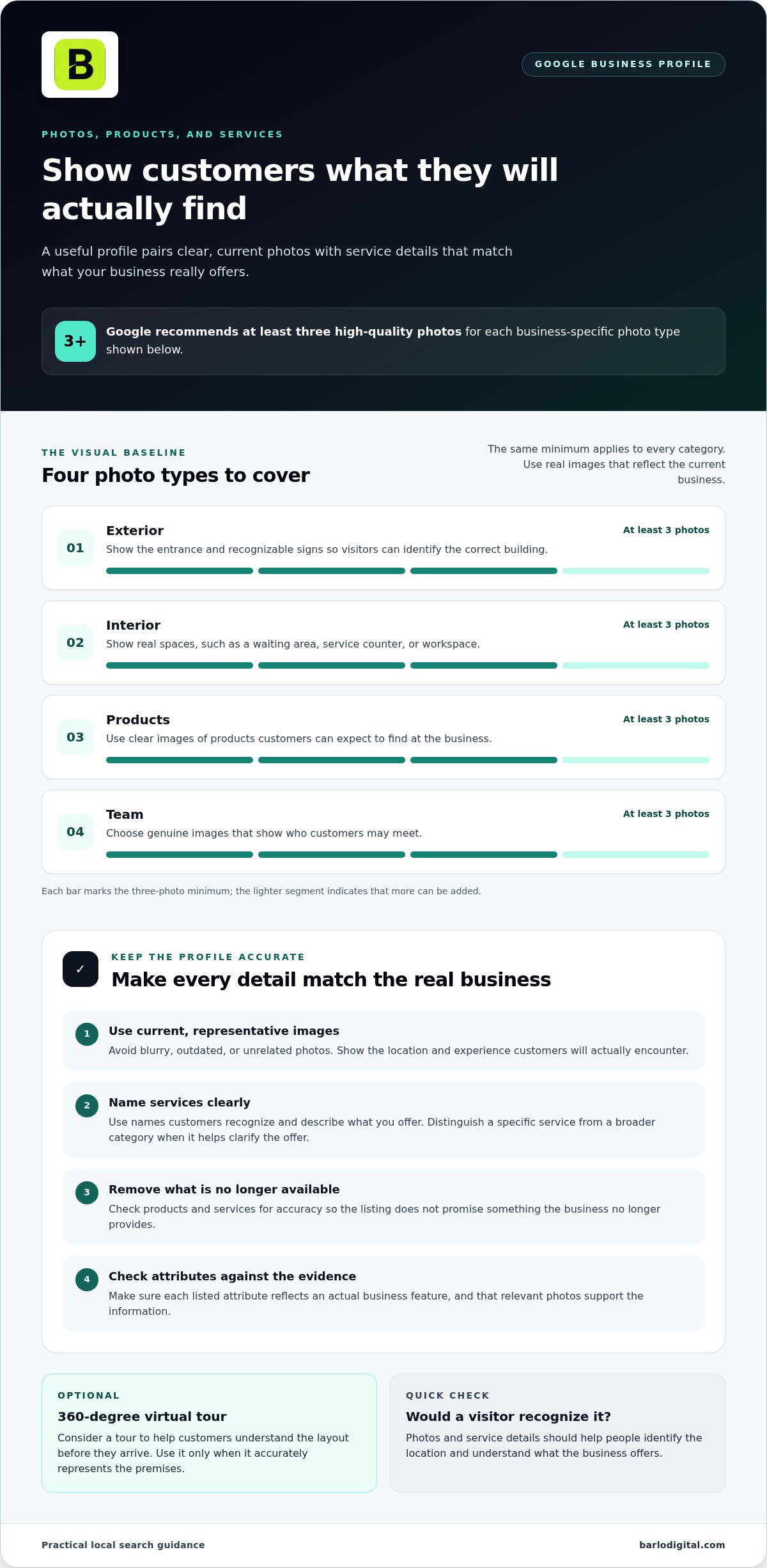
Build the visual and service details around what customers can expect at your location. Google recommends at least three high-quality photos for each business-specific photo type, including exterior, interior, product, and team photos.
- Upload clear photos that show the real business. Start with the entrance, interior, products, and team so customers can recognize the location and understand what to expect. Google recommends at least three high-quality photos in each of those business-specific categories. Avoid blurry, outdated, or unrelated images.
- Add exterior photos that help visitors identify the correct building. Show the entrance and recognizable signs, especially if the business is inside a larger property. A visitor approaching a storefront can compare its sign and doorway with the listing before entering. Keep the images representative of the current location.
- Use interior and team photos to make the business’s setting more concrete. A clear view of the waiting area, service counter, or workspace can answer practical questions before a visit. Team photos show who customers may meet. Choose images that reflect real conditions, not staged scenes that create the wrong expectation.
- Consider a 360-degree virtual tour to show more of the location. A tour can help a customer understand the layout before arriving, while standard photos offer quick visual checks. Use both only when they accurately represent the premises. Keep the images focused on the place and experience customers will actually encounter.
- Check every listed product and service for accuracy. Use names customers recognize, describe what you actually offer, and remove items that are no longer available. For example, a repair business should distinguish a specific repair service from general maintenance. Clear categories help visitors decide whether the business meets their needs.
- Check profile attributes against the visual details. Each attribute should reflect the business’s actual features, and photos should support that information. If the listing identifies an accessible entrance, an exterior image can help customers locate it. Correct mismatches promptly; inaccurate details can undermine trust before someone calls or visits.
- Make a recurring review step: compare the listing with the current location, services, and products. Replace outdated photos after a renovation or major change, and remove images that no longer represent the business. For help aligning profile details with local SEO and AI search, assess whether the information stays consistent across your local presence.
Is a Business Profile on Google free?
Yes. Creating a business listing on Google Search and Google Maps is free. The listing itself has no fee; advertising and other marketing work are separate costs.
- Distinguish the free listing from paid promotion. A business can add its information to Google without buying ads. Showing a business profile in Search, for example, doesn’t require a Google Ads campaign. Paid promotion is a separate choice, not a fee to create or maintain the listing.
- Check eligibility before spending time on setup. A profile is for businesses that meet customers face to face, either at a location or by visiting them. An online-only business without in-person customer contact isn’t eligible. Properties for rent or sale also aren’t intended to have profiles.
- Keep core business information consistent across Google Search, Google Maps, and your website. Compare the business name, address, phone number, hours, and service details. If your website lists a different phone number from the profile, customers may call the wrong line or wonder which information is current.
- Review each field before publishing changes. Use the real business name, without extra search terms or promotional language. Match the address to the customer-facing location, or describe the service area accurately if you visit customers. Check special hours before holidays so the listing doesn’t send someone to a closed door.
- Audit your listings whenever the business changes. After a move, phone change, or revised schedule, update the profile and other public business information. If you have multiple locations, check each one separately. A correct main listing won’t fix outdated branch details elsewhere in Google Maps.
- If Google suspends or disables your profile, read the notice and identify the issue it names. Correct inaccurate details or other profile information, then use Google’s appeal process and provide relevant evidence. Avoid creating duplicate listings to work around the suspension; duplicates can add confusion instead of resolving the original problem.
- Use the listing as one part of accurate local information, not as a substitute for the rest of your web presence. Consistent business details help customers verify they have found the right location. If that information is scattered or inconsistent, local SEO and AI search work can help address visibility and accuracy across local search.
Claiming and verifying a business profile
Use the steps below to claim control of the right listing and complete verification. Check eligibility first: an inaccurate or ineligible listing can cause problems before setup is complete.
-
Check Business Eligibility
Confirm that the business meets customers face to face, either at a location they visit or by visiting them. Online-only businesses without in-person contact and properties for rent or sale aren’t eligible. A consultant who meets customers at their offices may qualify; a web store with no in-person customer contact does not.
-
Create or Claim a Profile
Sign in with a Google Account, which Google requires to sign up for a Business Profile. Search Google for the business name and location before creating anything. If a listing already exists, request to claim it rather than creating a duplicate. If there’s no matching listing, enter the business information carefully. A basic profile can be created in about 15 minutes.
-
Verify the Business Profile
Follow the verification method Google provides for the listing. Phone or email verification may be available, according to Google. Complete the instructions using the account associated with the business, and keep access to the selected phone or email. Google says verification can take up to five business days.
- Check the business name, location, and contact details before submitting changes. Use the name customers recognize, and make sure the address or service-area details reflect how the business serves customers. For multiple branches, create or claim the correct location rather than attaching one branch’s details to another.
- Review access and ownership when responsibilities change. Google allows primary ownership of a profile to be transferred. Use the profile’s access controls to assign the appropriate owner or manager, and remove access for people who no longer manage the listing. Confirm who controls the account before a staff member or agency leaves.
- After verification, inspect the listing in Google Search and Maps. Confirm the public information matches the business, then update details such as hours, services, and events. If Google requests additional verification, follow the instructions shown in the profile instead of creating another listing. Keeping one accurate profile under the right owner prevents avoidable confusion.
Local search visibility and business benefits
A listing supports local visibility when it answers a nearby customer’s practical questions. Treat it as one part of the path from a local search to a call, visit, or booking.
- Decide what customer action you want local visibility to produce. A restaurant may want directions and table bookings; a plumber may want calls about service. That distinction determines which profile details need the most attention. Track meaningful actions, not just whether the listing appears in search results.
- Match your profile information to the service and location customers need. Someone searching for a nearby dentist needs the correct address, hours, and appointment details. A contractor who visits customers at home should make the service area clear. Specific information helps people judge whether the business fits their immediate need.
- Check the customer journey from a local search to the next step. Search for your business name and a relevant local service, then inspect the public listing. Confirm the phone number works, directions lead to the right entrance, and the website opens to a useful page. Fix anything that could get in the way of a visit or inquiry.
- Distinguish visibility from business outcomes. A view in Google Search isn’t the same as a qualified call, booked appointment, or completed sale. A clinic, for example, can compare calls and appointment bookings with the services it wants to grow. This shows whether local attention is generating useful demand.
- Consistent local information supports discovery across platforms. Compare the business name, address, phone number, hours, and services on the profile and website. If a customer sees one address in Google Maps and another on your website, uncertainty can interrupt their decision. Correct mismatches wherever customers encounter them.
- Connect local search to the rest of your marketing measurement. Where tracking allows, record which calls, forms, or bookings came from local search. Compare those actions with paid campaigns and website activity instead of treating every inquiry alike. This helps show whether the profile is supporting actual business demand.
- Review visibility and customer actions together on a recurring schedule. If a service listing receives attention but produces few calls, inspect the service details, contact path, and landing page. If calls come from the wrong area, clarify where the business serves customers. Our local SEO and AI search services address the wider visibility system around those details.
Nectafy research states that 88 percent of consumers who conduct a local search on a smartphone call or visit a store related to the search within a day.
Barlo Digital: Ecommerce ad management (Meta, Google, TikTok)
Barlo Digital helps businesses connect local visibility with measurable customer actions. A complete profile can support discovery, but it won’t resolve inconsistent search information or a weak path from a listing to an inquiry.
Turn to our local SEO and AI search services when local information, organic visibility, and customer discovery need coordinated attention. For businesses using paid channels, we also manage local advertising across Google Search, Local Services Ads, and Meta. The right work depends on the problem: inaccurate visibility needs search and profile work; limited paid reach may call for advertising management.
Use these distinctions to pinpoint where your local visibility needs attention.
Make local visibility accountable
A listing is only one part of a customer’s decision. The next challenge is connecting local discovery with meaningful actions, such as calls, bookings, or visits. Treat visibility as a connected process: bring the profile, website, and measurement together to see where the customer journey stalls.
Barlo Digital works on local SEO and AI search, as well as ecommerce tracking and measurement audits and ecommerce ad management across Meta, Google, and TikTok. For a local business, first identify the gap: customers may not find you, may see incomplete information, or may struggle to take the next step. A stronger Google Business Profile can support discovery, but it should be part of a broader search strategy.
If local discovery is not turning into meaningful customer actions, explore Barlo Digital’s local SEO and AI search services.
Frequently Asked Questions
What is this Google listing, and how does it work?
A Google Business Profile is a listing that can show a business in Google Search and Google Maps. It gives searchers a place to view key details and take action, such as calling or requesting directions. A customer comparing nearby auto repair shops, for example, can check which one offers the service they need. The business owner manages the listing information and can respond to customer feedback.
Is a business listing on Google free?
Yes. Creating and displaying a business listing in Google Search and Maps is free. Paid advertising is separate and isn’t required to have a listing. A business can publish its hours and contact details without running a Google Ads campaign. Owners should still keep the information accurate and manage customer interactions; those tasks don’t make the listing a paid Google product.
How do I create and verify my business listing?
Sign in to a Google Account, search for the business, and claim an existing listing if one appears. If there’s no matching listing, create one and enter accurate details. Then follow the verification method Google provides. Phone or email verification may be available. Use an account and contact method the business can access so the responsible person can complete verification and maintain control of the listing.
Can a service-area business hide its street address?
Yes. A business that visits customers in person can set up its listing as a service-area business and hide its street address from public view. Enter the real address during setup, then configure the service-area settings. A plumber who travels to homes, for example, can show the areas served without displaying a home address. Online-only businesses without face-to-face customer contact aren’t eligible for a listing.
How can I improve local visibility with my listing?
Make the listing specific and useful to the people you want to reach. Choose the category that best describes the business, keep service details current, and add accurate hours and contact information. Upload genuine photos and respond professionally to reviews. A clinic, for example, can clarify appointment options so searchers understand the next step. These actions improve the information customers see, but they don’t guarantee a particular search position.
How do I edit business hours, address, phone number, and services?
Once your profile is verified, edit it on Google Search or Google Maps. Keep your hours, address, phone number, and services accurate and consistent with your other public business information.

Article by
Carlos Benavides
Carlos Benavides founded Barlo Digital and is its Director of Paid Media and Performance. He has fifteen years in direct-response marketing, more than $50M in lifetime ad spend, and a B.S. in Computer Science, which is why tracking at Barlo Digital is built by hand. Barlo Digital is a director-led paid media and search agency serving US ecommerce brands, home-service companies and practices.


