

To learn how to fix duplicate conversions in Google Ads, trace each repeated count to its source: a tag, integration, import, or goal setup. Then correct the cause and test that one real business outcome is recorded as intended. A lower total after the repair may reflect more accurate measurement, not fewer sales.
Duplicate conversions make campaign performance look stronger than it is. That can distort performance signals and make historical comparisons harder to interpret.
This guide explains how to isolate the source, test the fix, and compare performance before and after the change. It also covers why historical totals need to be understood in the context of the tracking setup that produced them.
Key Takeaways
- Break down conversion discrepancies by campaign, device, and conversion action to narrow down where duplicate counts originate.
- Trace each repeated event through tags, platform integrations, and imported conversions before changing the setup.
- Review account-default and campaign-specific goals. Secondary actions can still affect bidding when included in a custom goal.
- Define the real business outcome first, then make sure each conversion trigger records that event rather than a page visit or incomplete action.
- Test repairs against actual business records. A lower reported total after a fix may mean measurement is more accurate, not that sales fell.
Diagnosing discrepancies by campaign, device, and conversion action
Before changing settings, separate reported conversions by campaign, device, and action. To count one conversion per ad interaction, open the conversion action’s settings and set its counting method to “One.” A practical approach to how to fix duplicate conversions in Google Ads starts by isolating the affected segment.
-
Compare Discrepancies Across Campaigns and Devices
Open the Google Ads campaign report and segment conversions by device. Then compare the same conversion action across campaigns. A spike limited to mobile traffic or one campaign points to a narrower cause than a rise across every segment. Record which actions show the discrepancy, and avoid changing account-wide settings until the pattern is clear.
- Distinguish repeated event delivery from duplicate bidding actions. Repeated delivery means the same tag or integration sends an event more than once. Duplicate bidding actions mean two configured conversion actions each record one business outcome. For example, a purchase tag might fire twice, or separate purchase actions might both count one order. A transaction ID can deduplicate repeats within one action, but it cannot merge separate actions.
Compare conversion action names and counts, not just the account total. If one order appears under two purchase actions, configuration overlap is likely. If one action records the same event repeatedly, inspect event delivery and transaction IDs in that setup.
-
Review Primary and Secondary Conversion Actions
Check whether each action is Primary or Secondary, then review which actions contribute to reporting and bidding. Primary actions generally inform campaign optimization and appear in the “Conversions” column. Secondary actions are typically for observation and appear in “All conversions.” A page view alongside a purchase can inflate totals if both are treated as primary outcomes.
- Compare “Conversions” with “All conversions” for each campaign and device. If excess counts appear only in “All conversions,” a secondary action may explain the difference. That does not necessarily mean purchases are duplicated. If purchase counts repeat in the main column, inspect overlapping primary actions or duplicate event delivery.
Use the same date range and attribution view when comparing segments. Google Ads can report conversions against the ad interaction date, while another system may use the conversion date. This can shift campaign or device comparisons between reporting periods without creating another business outcome.
Do not set every purchase action to “One” by default. That setting can hide legitimate repeat purchases after one ad interaction. Match the counting method to the business event, then confirm the affected action and segment before changing it. This is central to how to fix duplicate conversions in Google Ads without masking valid sales.
Controlled testing and repair verification
After significant changes or account linking, Google Ads conversion data can take up to 7 days to fully appear in reports. Treat early totals as provisional, then verify the repaired event against the underlying business records.
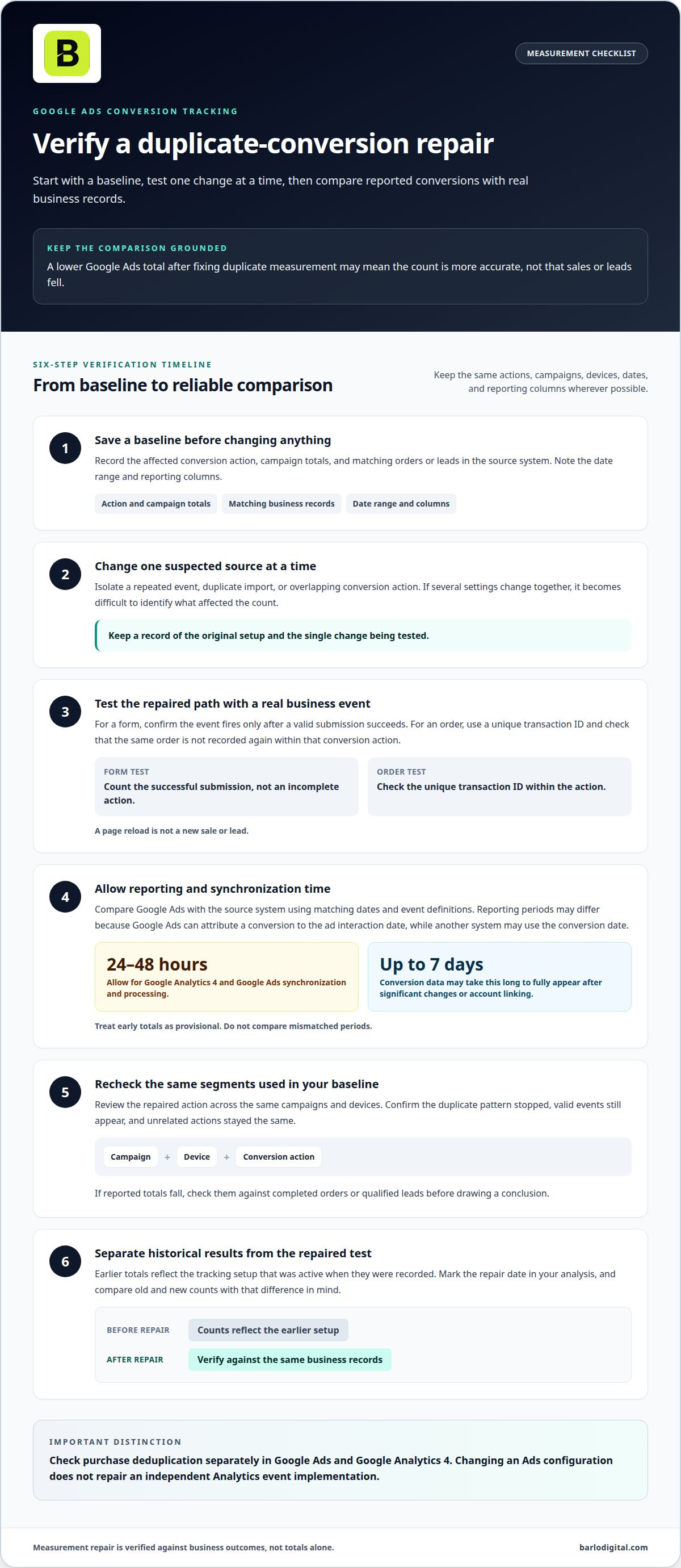
- Record a baseline before changing the setup. Capture the affected conversion action, its campaign totals, and the matching count in your order system or lead records. Note the date range and reporting columns used. This gives you a fixed comparison point and helps prevent a lower post-repair total from being mistaken for lost sales.
- Change one thing at a time. If you disable a duplicate tag and change a conversion goal simultaneously, you will not know which repair affected the count. Focus the test on one suspected source, such as a repeated event, duplicate import, or overlapping action. Record the original configuration so you can trace what changed.
- Test the repaired path with a real, controlled business event. For a form, complete a valid submission and confirm the event fires only after success. For an order, use a unique transaction ID and confirm the same order does not create another record within the same conversion action. Do not treat a page reload as a new sale or lead.
- Compare Google Ads with the source system using matching dates and event definitions. Google Ads may record conversions against the ad interaction date, while another system may use the conversion date. For Google Analytics 4 and Google Ads, allow 24-48 hours for synchronization and processing before comparing results. Avoid judging a repair from mismatched periods.
- Review the repaired action across the same campaigns and devices used in your baseline. Check whether the duplicate pattern stopped, valid business events still appear, and unrelated actions stayed the same. If totals fall, compare them with completed orders or qualified leads. A lower Google Ads total after a duplicate-measurement repair may mean more accurate measurement, not fewer sales.
- Keep historical reporting separate from the new test. A repaired setup improves measurement going forward, but earlier totals reflect the configuration active when those conversions were recorded. Mark the change date in your analysis, then compare periods carefully rather than treating old and new counts as directly equivalent. Recheck after reporting has had time to populate.
Check purchase deduplication separately in Google Ads and Google Analytics 4; changing an Ads configuration does not repair an independent Analytics event implementation.
Auditing tags, integrations, and import pipelines
Trace each conversion from completion through every system that sends it to Google Ads. Test tags, integrations, and imports separately to keep the source of any duplicate count clear.
-
Check Whether Conversion Tags Fire More Than Once
Test the full conversion path in a browser and inspect tag activity at each step. For a form, submit it once, then check whether the tag fires only after successful submission. A tag that fires on every page visit can record conversions without a completed form.
For event-based tracking, inspect the trigger condition. It should respond to the actual form submission, not every click on the page. Check page reloads and return visits too. If the same event fires again without another successful submission, review the trigger and check for duplicate tag installations.
-
Deduplicate Conversions With Transaction or Order IDs
Pass a stable transaction ID with each purchase conversion. Google Ads can recognize repeated conversions with the same ID as duplicates when they belong to the same conversion action. Keep the ID unchanged for one order, and use a different ID for each genuinely new order.
Check that the transaction ID reaches the conversion tag consistently. A missing ID, a changing ID for the same order, or a reused ID across different orders defeats deduplication. IDs also do not combine separate purchase actions into one business outcome.
- Trace every integration that can send purchase or lead events to Google Ads. Map the source event to its destination action, then check whether a website tag and an imported event represent the same order. For example, a Shopify purchase tag and an imported purchase event can both report one transaction if both paths remain active.
Review the import schedule and source records for repeated uploads. Match each imported event to its original order or lead record, then look for the same event arriving through another route. Change one delivery path at a time. A tracking and measurement audit can help isolate overlapping implementations across platforms.
- Audit Google Analytics 4 and Google Ads independently. Deduplication in one platform does not repair an independent event implementation in the other. Check the GA4 purchase event, its transaction ID, and the Google Ads conversion action separately before comparing their totals.
After integration changes, allow 24-48 hours before comparing Google Analytics and Google Ads results. Synchronization and processing delays can make an immediate comparison misleading. Keep a record of the source, event name, destination action, and change made; that map exposes the next duplicate without another blind configuration change.
Campaign-specific and custom conversion goals
Campaign goal settings can change which conversion actions guide bidding. Review those settings separately from tag delivery: a goal configuration can make an existing action count toward optimization without creating another event.
- Open each campaign’s conversion goal settings and compare them with the account-default goals. Google Ads campaigns can override account-default conversion goals, so matching account settings do not prove that every campaign uses the same actions. Record each campaign’s selected goals and actions. A campaign-level difference can explain why bidding signals diverge while the underlying event count remains unchanged.
- Inspect custom goals for every campaign that uses them. A custom goal can include secondary conversion actions for bidding. So an action marked Secondary may still influence optimization when it is part of a custom goal. Check the full action list, not just the action’s general status. For example, a page-view action can remain secondary yet enter bidding through a custom goal.
- Compare the goal actions with the business outcomes each campaign should optimize for. A purchase campaign should not use page views as a substitute for completed orders. A lead campaign should distinguish a successful form submission from a visit to the form page. Document the intended outcome beside each campaign’s selected actions, then flag extra actions that measure earlier steps.
- Check whether the same business event appears through multiple actions within a goal. One order might be represented by a website purchase action and a separate imported purchase action. If both are included, the campaign can receive two bidding signals for one order, even when each action accurately records its own source. Identify overlap before removing or changing an action.
- Change one campaign’s goal configuration at a time. Keep its conversion actions and event delivery unchanged during the test. If bidding behavior or reported conversions shift, compare the revised goal membership with your baseline. This separates goal selection from tag, integration, and import changes, which should be tested independently.
- Keep secondary actions when they provide useful observation, but exclude them from bidding goals unless they are deliberate optimization targets. Check each campaign’s custom goal after edits, because a selected secondary action can retain its bidding role. Review campaigns separately when objectives differ instead of applying one account-wide goal to every campaign.
Defining the business event that qualifies as a conversion
Define the business outcome first, then connect its trigger to the completed event. A page visit is not a submitted form, and a form start is not a qualified lead.
- Define the outcome in operational terms before editing Google Ads. For ecommerce, that may mean a completed order, not a product view or cart addition. For lead generation, it may mean a successfully submitted form, not opening the form page. Use a description that someone reviewing business records can recognize without interpreting a marketing label.
Then identify the system that confirms the event. An order record confirms a purchase; a successful submission confirms a form lead. If you cannot point to a completed record, the conversion definition may be too broad.
- Separate completed outcomes from the steps that lead to them. A customer viewing a product, adding it to a cart, and placing an order creates distinct events. Counting all three as equivalent conversions makes the total describe activity, not orders. Keep earlier steps available for analysis, but do not treat them as completed business outcomes by default.
Apply the same distinction to lead forms. A form-page view, a button click, and a successful submission are not interchangeable. A click can happen without a completed submission, so it should not stand in for a received lead.
- Map each conversion action to one business event and its confirming record. For example, label a purchase action as a completed order and match it to the order system. Keep a separate action for a meaningful earlier step, such as adding an item to the cart. Clear mappings make overlapping actions easier to spot.
Check the map against every event source. A website tag and an imported record may both represent the same purchase. Clear event definitions should reveal that overlap before a campaign treats both as separate outcomes.
- Choose counting behavior based on what qualifies as one outcome. For a lead action, one completed submission after an ad interaction may be the intended result. For purchases, repeat orders can be legitimate separate outcomes. Setting a purchase action to count one conversion can hide repeat purchases, so do not use it as a universal deduplication fix.
Document the event, trigger, source record, and counting method together. That gives each later test a clear standard: one real business event should produce the intended conversion record, not a page visit or an accidental repeat.
Test failed and incomplete paths too. If a visitor submits an invalid form and sees an error, that path should not produce the same conversion as a successful lead. If refreshing a confirmation page triggers another event, investigate whether the event can repeat without another completed outcome.
Barlo Digital
Barlo Digital helps businesses trace conversion discrepancies across Google Ads tracking and campaign measurement. When tags, integrations, imports, or goals overlap, we identify how the setup records each business event and where duplicate counts enter the reporting path.
Our tracking and measurement audit is a practical next step when you need the data flow examined across platforms, not another guess at campaign settings. A director runs every account, and the work stays at senior level. If duplicate conversions are distorting your decisions, contact Barlo Digital to discuss the tracking issue.
Make reliable measurement the basis for your next decision
Once your conversion setup reflects real business outcomes, use accurate measurement as a decision threshold. Don’t scale campaigns based on a higher reported total alone. Require the data to support the decision you’re making, whether you’re shifting budget, comparing campaigns, or assessing lead quality.
The practical answer to how to fix duplicate conversions in Google Ads is not just to reduce a count. It’s to establish a dependable measurement foundation, then make campaign decisions from signals that represent actual outcomes. If you need help tracing a tracking issue across your advertising setup, Barlo Digital can assess the measurement and identify where the data path needs attention.
Contact Barlo Digital about tracking help and put your next campaign decision on firmer ground.
Frequently Asked Questions
What happens to historical performance?
Historical totals generally remain a record of what Google Ads reported, but invalid conversions can be removed later. Google Ads may remove invalid conversions more than 13 months after they were initially reported. That can revise older totals independently of a recent tracking repair. For a retrospective analysis, preserve a dated export of the original reports and note when later figures differ, rather than silently replacing the earlier snapshot.
How do I diagnose duplicate conversions in Google Ads?
Use the attribution reports to examine which ad interactions receive credit before a conversion. Google Ads offers 30-, 60-, and 90-day lookback windows, and most attribution reports open with a 30-day lookback. If the suspected extra credit comes from an interaction without a click, inspect view-through reporting. This helps distinguish separate credited interactions from repeated records of the same completed event.
What causes duplicate conversion tracking in Google Ads?
Some apparent duplicates come from attribution rules rather than repeated event delivery. Google Ads defaults to a 30-day click-through window and a 1-day view-through window. A view-through conversion can be credited without an ad click, so comparing it with a click-only system can make counts appear inconsistent. Check the attribution windows and interaction types before treating every difference as a duplicated business event.
How do I fix duplicate conversions from Google Ads tags and Google Analytics tracking both enabled?
Decide which source should supply the conversion action used for campaign optimization, then keep the parallel source available for comparison without letting both actions guide bidding. For example, a retailer could use its Google Ads purchase action for bidding and keep the imported Google Analytics 4 purchase action outside the campaign goal. Compare their records after processing, and document the chosen source so future account edits do not reintroduce overlap.
Can duplicate Google Ads conversions affect bidding and campaign performance?
Yes. Duplicate signals can make reported cost per conversion look lower and conversion value or return on ad spend look higher than business records support. Review the bidding strategy’s selected conversion goals alongside the metrics used for budget decisions. If an action is included only for observation, keep it out of the bidding goal; otherwise, the campaign may optimize against a count that overstates completed outcomes.
How do I prevent duplicate conversions with Google Tag Manager?
In Google Tag Manager, check that the conversion tag fires only after a successful form submission, not on every page visit or click. Remove duplicate tag installations. For purchases, pass a stable transaction ID so repeated events for the same order are deduplicated within the same conversion action.

Article by
Carlos Benavides
Carlos Benavides founded Barlo Digital and is its Director of Paid Media and Performance. He has fifteen years in direct-response marketing, more than $50M in lifetime ad spend, and a B.S. in Computer Science, which is why tracking at Barlo Digital is built by hand. Barlo Digital is a director-led paid media and search agency serving US ecommerce brands, home-service companies and practices.


