

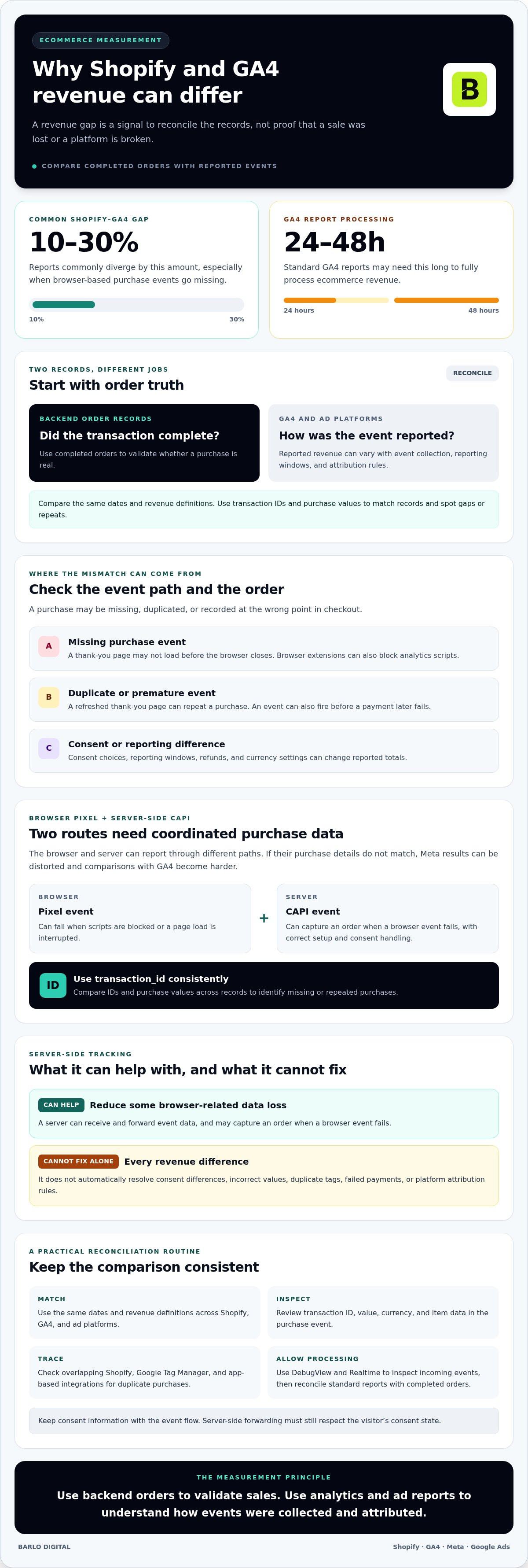
Server-side tracking can narrow a GA4 revenue gap, but it won’t eliminate every discrepancy. Shopify and GA4 revenue reports commonly differ by 10 to 30 percent. The practical answer to how to fix a GA4 revenue mismatch is to validate orders against backend records, then diagnose what GA4 or the ad platforms count differently.
A gap doesn’t automatically mean your store lost revenue or that a platform is broken. Purchase events can be missed, duplicated, or recorded before a payment fails. Consent choices, reporting windows, refunds, and currency settings can also change the totals.
This article explains when server-side tracking helps, where it falls short, and how to assess Shopify revenue alongside Meta Ads and Google Ads. You’ll learn how consent modelling and attribution differences affect reported results, and which tracking issues to isolate before treating any platform’s revenue figure as the source of truth.
Key Takeaways
- Server-side tracking can reduce missed purchase data, but it does not make GA4 revenue identical to Shopify or ad platform reports.
- Check that browser Pixel and server-side CAPI events are coordinated, with purchase identifiers used to prevent duplicate counting.
- Compare Shopify and GA4 using consistent dates and revenue definitions, then investigate missing purchases, duplicate events, refunds, and consent effects.
- Review the purchase event’s transaction ID, value, currency, and item data to find implementation errors that distort reported revenue.
- Assess Meta and Google Ads claims against their attribution windows and counting rules before treating platform-reported revenue as settled sales.
Does server-side tracking fix the discrepancy?
Server-side tracking can narrow a Shopify-GA4 revenue gap, but it won’t erase every difference. Shopify and GA4 reports commonly diverge by 10 to 30 percent when browser-based purchase events go missing.
It helps to separate attribution from order truth. GA4 needs a browser to fire a purchase event with a valid transaction ID. Backend order records show whether the transaction completed. For reliable revenue measurement, compare both instead of treating either report as a complete account of sales.
Browser and CAPI Tracking Mismatches
Browser Pixel and server-side Conversions API (CAPI) tracking send event data through different routes. A mismatch occurs when the browser and server report different purchase details or one route records an event the other misses. For example, a Pixel may send a purchase while CAPI sends no matching event. That conflict can distort Meta’s reported results and complicate comparison with GA4.
Server-side collection can capture an order when a browser event fails, but it cannot make every platform report the same revenue. Check that each route uses consistent purchase values and transaction details, then compare platform totals with backend orders. A repeated purchase event can inflate totals; a missing event can suppress them. CAPI and Pixel records need deliberate coordination, not just parallel installation.
Browser Purchase Tracking Failures
Browser purchase tracking depends on JavaScript running successfully and sending the event at the right point in checkout. If a purchase event relies only on a thank-you page, a customer who closes the browser before that page loads can leave GA4 without a purchase. Browser extensions that block analytics can also prevent the event from reaching GA4.
Other failures happen when a payment later fails or the event fires more than once. A browser-based event may register before payment completion, while a refreshed thank-you page can repeat the purchase. Compare GA4 purchase events with completed backend orders to find missing, failed, or duplicate records. A transaction ID helps identify repeat events during reconciliation.
Server-side tracking addresses some browser limitations, including interrupted page loads and blocked scripts. It does not automatically solve consent-state differences, incorrect values, or duplicate tags. Consent choices can affect whether browser events fire, while front-end timing and network reliability can interrupt collection. Server-side implementation must still respect the consent state attached to each event.
Use the two data paths for different jobs. Browser-side GA4 events support marketing attribution; backend or server-side validation establishes whether an order is real. Compare transaction IDs and purchase values across records, then isolate where events disappear or duplicate. This shows whether the gap comes from collection, payment status, or reporting differences, rather than assuming a server connection will reconcile every total.
Server-side tracking's benefits and limitations
Server-side analytics tracking routes event collection through a server instead of relying only on browser scripts. It can reduce losses caused by front-end timing, but it cannot determine whether a purchase is valid or make every platform use the same attribution rules. Treat it as a data route, not a revenue reconciliation system.
One benefit is greater control over how events are received and forwarded. A server can validate incoming purchase details against order records before sending them onward, giving teams another way to catch missing or malformed events. It still depends on correct setup, consent state, and the data passed from checkout. If the source event has the wrong value, server-side delivery can preserve that error.
Duplicate collection is a separate failure. Before adding another GA4 integration, identify existing Shopify, Google Tag Manager, and app-based tracking. Disable overlapping integrations before installing a replacement. Avoid having both a native ecommerce platform and GTM send the same purchase without a deduplication plan. Use transaction_id consistently to help identify repeated purchases, and inspect GTM tags for multiple events carrying different values.
Consent controls still matter. A server-side setup does not automatically make analytics collection consistent with a visitor’s consent choice or applicable policies. Preserve consent information through the event flow and ensure server forwarding respects it. A server cannot turn a denied browser event into permission to collect or send analytics data.
Build a weekly delta between GA4, Shopify, and ad platforms. Compare the same dates and revenue definitions, then record the size and direction of each difference. A recurring jump in GA4 purchases points to a different problem than a steady gap. Standard GA4 reports may take 24 to 48 hours to process ecommerce revenue fully, so avoid treating an incomplete reporting window as a tracking failure.
DebugView and Realtime can show incoming purchase events before standard reports contain complete revenue. Use them to inspect event arrival, then reconcile the period against completed orders. Keep the weekly comparison consistent. Changing date ranges or revenue definitions mid-review can make a broken measurement path look like ordinary platform variance.
Do not raise ad spend while a critical mismatch remains unexplained. First inspect event duplication, transaction IDs, values, and consent handling. Then confirm that the remaining difference reflects reporting or attribution logic rather than missing orders. An ecommerce tracking and measurement audit can help isolate those implementation failures before budget decisions rely on distorted analytics.
Revenue and transaction discrepancies between Shopify and GA4
Shopify and GA4 can report different revenue because their records and event definitions don’t always match. Audit GA4 purchase events, then reconcile transaction IDs and values against order-management-system records for the same dates.
Shopify Completed-Order Revenue
Shopify’s completed-order revenue comes from its order records, while GA4 relies on purchase events sent to its property. That distinction matters: an order can exist in Shopify without a corresponding GA4 event, or the event can report a different value.
Compare the same date range and transaction IDs. Then account for refunds recorded after the original order, which can leave Shopify’s current totals and GA4’s unreconciled purchase revenue out of step.
GA4 Purchase and Net Revenue Calculations
GA4 recognizes a purchase when the event is named purchase and includes transaction_id, value, and currency. Those parameters determine whether the event can contribute correctly to purchase revenue. Missing or inconsistent values compromise the comparison.
Refunds need separate handling. Refunded orders can remain in GA4 revenue unless refund events or reconciliation logic account for them. Compare gross purchase activity with refunds and resulting net revenue, rather than treating every purchase event as final retained sales.
Taxes, Shipping, Discounts, and Currency
GA4 and Shopify totals diverge when one includes tax or shipping and the other excludes it. Discounts can also be applied differently. Decide which revenue definition matters, then map transaction ID, value, tax, shipping, currency, coupon, and items consistently.
Match GA4’s currency setting to the store’s currency. A missing currency parameter or different backend currency makes revenue comparisons unreliable. GA4 currency values should use a three-letter ISO code, such as USD. Check the event payload, not just the report total.
GA4 Revenue Reporting Factors
Attribution settings, reporting identity, consent, and data thresholds affect how GA4 displays revenue across reports. GA4 uses a 30-day attribution window for acquisition conversions and a 90-day window for other conversions. Different settings can assign credit differently; thresholds can limit visible detail in some reports.
Reporting identity can also change how users and sessions appear, while consent affects which activity GA4 can observe. Those differences alter reported attribution and coverage, not Shopify’s underlying order record. Align dates and attribution settings before interpreting the totals.
Shopify’s native GA4 integration and a third-party Shopify app are different implementation routes, not proof of accurate tracking. Inspect the purchase event produced by the chosen route, including its name, transaction ID, value, currency, and items. Check GTM and installed apps for overlapping purchase tags before comparing totals. Use one deliberate event path, then reconcile a shared reporting period against Shopify orders and the order management system.
How does GA4 calculate purchase revenue, gross revenue, refunds, and net revenue?
GA4’s revenue totals depend on the ecommerce events and parameters received by the property. A purchase is recognized when its event name is purchase; its revenue calculation depends on the data sent with that event. Gross and net figures can diverge from store totals when refunds, discounts, taxes, or shipping are handled differently.
Start with the event payload, not the headline revenue card. Confirm each purchase includes a transaction ID, value, and currency. The transaction ID helps identify the order, while value and currency tell GA4 what amount and denomination to report. A missing value can leave a purchase event in reports without the expected revenue contribution.
For product-level reporting, inspect the items parameter. It must be an array, and each product needs price, quantity, item_id, and item_name. If items is sent as an object instead, purchased product data may not appear correctly. This can create a sharp split: purchase totals are present, but item-level revenue is incomplete.
Gross revenue describes purchase value before refund adjustments; net revenue reflects the effect of refunds when those adjustments are tracked. In GA4, a refunded order can remain in purchase revenue if no refund event or reconciliation logic records the reversal. Compare the original purchase with the later refund record instead of assuming GA4 rewrites the earlier event.
For example, an order can generate a purchase event on checkout, then be refunded later in the store. If the refund is absent from GA4, the property still shows the purchase without its offset. Finance and GA4 then disagree for a clear reason: one ledger includes the reversal, while the analytics event stream does not.
Use a transaction-level reconciliation to locate the break:
- Match each GA4
transaction_idto the store’s order record. - Compare purchase event value and currency with the order’s revenue basis.
- Check whether refunds have corresponding GA4 refund events or reconciliation entries.
- Review item arrays for missing prices, quantities, product identifiers, or names.
Then inspect the collection path. In Google Tag Manager, a GA4 purchase tag using Data Layer ecommerce details needs Send Ecommerce Data enabled and Data Layer selected as its source. Multiple tags sending different values can make the same order appear inconsistent across reports. A Modify Events rule that changes purchase parameters, such as currency, can also corrupt revenue data; removing the rule does not repair historical records.
Keep the reporting definition consistent across GA4 and the order ledger. Compare purchase revenue with the corresponding order values, then account separately for refunds and any differences in tax, shipping, or discounts. That separation shows whether the mismatch starts in event collection, parameter mapping, or financial reconciliation.
How do taxes, shipping, discounts, and currency conversion affect GA4 revenue totals?
GA4 and Shopify can receive the same order but report different revenue when their event values follow different rules. The mismatch often sits in the purchase payload: which amount becomes value, how discounts are reflected, and whether tax or shipping is included. Align those definitions before treating the difference as missing sales.
Start with the business question: should reported revenue include tax and shipping? Choose the treatment that fits your reporting goal, then apply it consistently in Shopify records and GA4 events. If Shopify’s order total includes shipping but the GA4 purchase value excludes it, the reports will diverge even when both correctly represent the order under different definitions.
Discounts require the same discipline. Check whether the purchase event’s value reflects the amount after discounts, and whether coupon details are passed separately. For example, a coupon can appear in the event while the value still reflects the pre-discount amount. That creates a mismatch between the transaction total and the amount GA4 uses for revenue reporting.
Separate item-level and order-level fields during an audit. In the items array, confirm that each product’s price and quantity reflect the intended item revenue. Then compare the combined item values with the order-level value. Map tax, shipping, and coupon parameters deliberately, rather than silently adding them to or removing them from product prices.
Currency can create a larger reporting error. The GA4 currency parameter should use a three-letter ISO currency code, such as USD, EUR, or CAD. Match the currency sent with the purchase to the store’s transaction currency. A missing code or a mismatch between the GA4 event and backend currency makes the comparison unreliable, even when the numeric amount appears plausible.
For a store accepting multiple currencies, compare each order in its original transaction currency before reviewing converted totals. Distinguish the amount charged to the customer from any display-currency total used in reporting. Otherwise, an exchange-rate conversion can look like a tracking error. Keep the currency and value paired on each purchase event, and document how the order system presents converted revenue.
Use one reconciliation worksheet with a row per transaction. Include Shopify order value, GA4 event value, currency, tax treatment, shipping, discount, and refund status. Filter first for orders where these definitions differ. Then inspect the relevant event payload and correct the mapping at its source, rather than applying adjustments to totals after collection.
If these fields disagree across Shopify and GA4, an ecommerce tracking and measurement audit can identify where the purchase values diverge.
Barlo Digital: Ecommerce ad management (Meta, Google, TikTok)
Barlo Digital helps ecommerce teams connect measurement problems to the ad decisions they affect. When Shopify orders, GA4 revenue, and platform claims don’t line up, our ecommerce tracking and measurement audit examines the data behind those figures.
Once measurement is sound, Barlo Digital manages ecommerce ads across Meta, Google, and TikTok. This suits businesses that need campaign management informed by clearer measurement, with reported performance tied to defined business outcomes.
For tracking questions, our ecommerce tracking and measurement work addresses data gaps that can undermine those decisions.
Make revenue data usable for the next decision
Knowing how to fix a GA4 revenue mismatch matters only if the correction improves the decisions that follow. Define which record governs completed orders and which reports measure attribution. Document those rules alongside your reporting process. Your team gets a stable baseline instead of a moving target.
When numbers diverge again, classify the cause before changing campaigns. Is the issue event collection, value mapping, or attribution? Record the evidence and change one tracking variable at a time. Then compare results against the same business records. This helps distinguish a measurement correction from a change in reported revenue.
If tracking issues still leave campaign decisions exposed, Barlo Digital can help assess ecommerce measurement. Request help with ecommerce tracking and measurement to establish a clearer basis for your next decision.
Frequently Asked Questions
Why does GA4 revenue differ from Shopify or ecommerce platform revenue?
GA4 and Shopify measure revenue through different records and reporting rules. A useful first check is whether both reports use the same dates, time zone, and order status. Then compare individual orders, not just totals: a Shopify order absent from GA4 points toward collection, while matching orders with different values point toward event mapping or revenue definitions. Attribution also changes which marketing source receives credit, not the underlying store order.
How do you verify GA4 purchase events and transaction_id deduplication?
Verify each test order appears as a single GA4 purchase event with an ID matching its Shopify order. In GA4 DebugView, inspect the event after completing checkout, then compare it with the order record. Check repeat visits and thank-you page refreshes for repeated events carrying the same ID. A transaction ID supports duplicate identification, but it does not repair conflicting values or prove that payment settled.
How do you troubleshoot missing or duplicate GA4 purchase events in Google Tag Manager?
Use Google Tag Manager Preview to trace a test checkout from the payment step through the confirmation page. Confirm the purchase tag fires at the intended point, then check whether another GTM tag, Shopify integration, or app sends the same event. If the tag fails, inspect its trigger and ecommerce data source. If it fires twice, isolate the duplicate sender before changing triggers, or the fix could suppress valid purchases.
How do you check GA4 ecommerce event parameters such as value, currency, and items?
Inspect the event payload in Tag Assistant or DebugView, then compare it with a known order. Confirm the event uses the purchase name and carries the expected value and currency. Check that items is an array, with each item containing price, quantity, item ID, and item name. A missing product field can break item reporting even when transaction-level revenue appears. Test a discounted order separately.
How long does GA4 take to process revenue data, and how do reporting dates or time zones affect totals?
GA4 standard reports may take 24 to 48 hours to fully process ecommerce revenue. Purchase events can appear in DebugView or Realtime before standard reports show complete totals. Compare Shopify and GA4 using the same property time zone and date boundaries. A late-night order may fall on different calendar dates when systems use different time zones. Recheck the same completed period before treating a temporary gap as a tracking fault.
What GA4 consent mode, ad blockers, and cross-domain tracking issues can cause revenue mismatches?
Consent choices can prevent browser events from firing, and server-side forwarding must preserve and respect the event’s consent state. Ad blockers or browser extensions can stop analytics events from reaching GA4. Cross-domain tracking issues are not covered in the provided material.

Article by
Carlos Benavides
Carlos Benavides founded Barlo Digital and is its Director of Paid Media and Performance. He has fifteen years in direct-response marketing, more than $50M in lifetime ad spend, and a B.S. in Computer Science, which is why tracking at Barlo Digital is built by hand. Barlo Digital is a director-led paid media and search agency serving US ecommerce brands, home-service companies and practices.


